Iceland Ring Road: eSIM Coverage on Route 1 and in the Highlands
Explore eSIM coverage options for your journey on Iceland's Ring Road and in the highlands. Learn about activation, daily plans, and network providers.
Published Oct 28, 202611 min read
In this guide
What data options are available for eSIM users in Iceland?
For Iceland, you can choose either a fixed-data eSIM plan that lasts for a set validity period, or a daily plan that refreshes a full-speed allowance each day. The better choice depends on whether you will drive steadily around Route 1, work from the road, or spend long periods away from signal in the highlands.
The BeeSim catalog has 7 fixed-data plans for Iceland: 1 GB for 7 days, 3 GB for 30 days, 5 GB for 30 days, 10 GB for 30 days, 20 GB for 30 days, 50 GB for 30 days, and 50 GB for 180 days. A fixed plan is usually easier to manage if your usage varies from day to day. For example, you may use very little data while driving long empty stretches, then use more at night for route checks, cloud photo backup, email, or accommodation searches.
Daily plans work differently. Iceland has 15 daily plans with 1 GB, 2 GB, 3 GB, 5 GB, or 10 GB of full-speed data per day, for 1 to 30 days. After the daily allowance is used, the speed drops. That reduced speed can still be enough for light messaging, but you should not rely on it for uploading video, updating offline maps, or loading heavy websites when you are trying to make a route decision.
A simple way to choose is to list what must work without Wi-Fi. Navigation, weather checks, road conditions, accommodation messages, banking approvals, parking apps, and emergency information are the core uses. Streaming, large app updates, and automatic photo backup are the uses to control. Before leaving home, open your phone settings and turn off mobile data for apps that do not need it on the road.
On iPhone, go to Settings > Cellular, scroll to the app list, and switch off mobile data for video, cloud storage, and large social apps if you want to preserve allowance. Also check Settings > App Store and turn off App Downloads over cellular if you do not want iOS to pull large files on the eSIM line. On Android, use Settings > Network & internet > SIMs > App data usage on Pixel, or Settings > Connections > Data usage > Mobile data usage on Samsung, then restrict background data for apps that are not needed while driving.
For a short stopover in Reykjavík and the south coast, a small fixed plan may be enough if you rely on hotel Wi-Fi. For a full Ring Road trip, choose a larger fixed plan or a daily plan with enough full-speed data for navigation, messages, and weather. If you plan to tether a laptop, use video calls, or upload camera files, treat that as heavy use and size the plan accordingly. Do not write the price down from an old article or screenshot; live plan prices belong on the destination page because they can change.
Is there reliable eSIM coverage along the Ring Road?
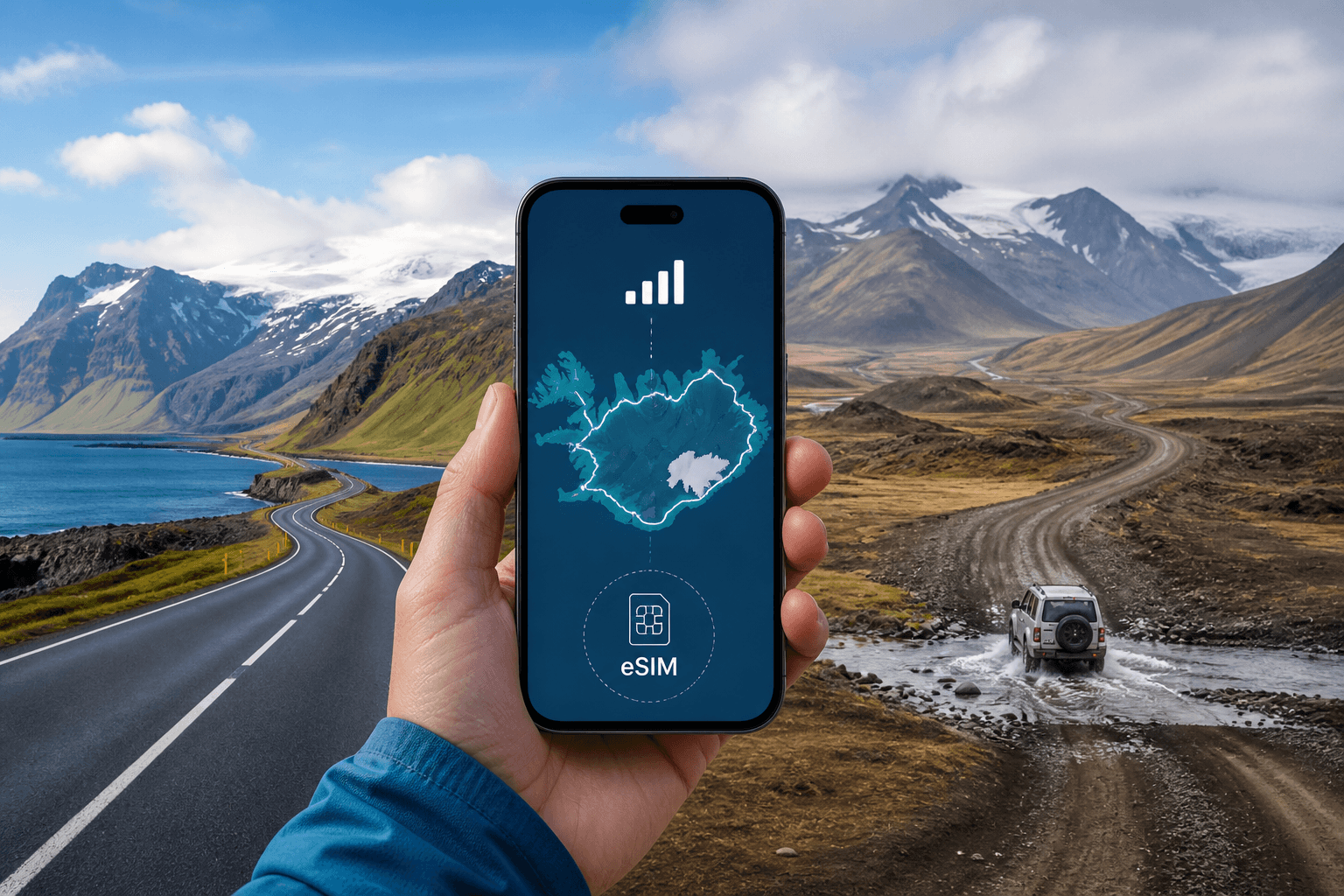
Coverage on Iceland’s Ring Road is generally much better than coverage in the interior, but it is still rural driving. The plans connect to Nova, Síminn, and Vodafone, each with 5G listed for Iceland. That does not mean you will have 5G on every bend of Route 1. It means the plan can use those partner networks where service is available, and your phone will fall back according to local coverage and signal conditions.
Before you leave Reykjavík or Keflavík, do three checks while you still have dependable service. First, confirm the eSIM line is turned on. On iPhone, use Settings > Cellular, tap the travel eSIM, and make sure Turn On This Line is enabled. On Pixel, use Settings > Network & internet > SIMs, tap the eSIM, and enable Use SIM. On Samsung, use Settings > Connections > SIM manager, then switch the eSIM on.
Second, set cellular data to the eSIM line. On iPhone, go to Settings > Cellular > Cellular Data and select the travel eSIM. If your home SIM is still installed, keep Data Roaming off for that home line to avoid accidental roaming. On Android, use Settings > Network & internet > SIMs > Mobile data on Pixel, or Settings > Connections > SIM manager > Mobile data on Samsung, and choose the eSIM.
Third, enable data roaming for the eSIM line, not necessarily for every SIM in the phone. Travel eSIMs often need roaming switched on because they attach through partner networks. On iPhone, open Settings > Cellular > your eSIM > Data Roaming. On Pixel, use Settings > Network & internet > SIMs > your eSIM > Roaming. On Samsung, use Settings > Connections > Mobile networks > Data roaming, then confirm the correct SIM is used for mobile data.
On the Ring Road, expect signal quality to change with terrain, distance from settlements, weather exposure, and whether you are behind hills or cliffs. If service drops while driving, do not keep changing settings at speed. Pull over safely, wait a minute, then toggle Airplane Mode on and off. That forces the phone to look again for a network. If it reconnects to a weak signal, leave it alone unless data fails completely.
If data does not work although signal bars are visible, check the basics in this order: mobile data on, correct data SIM selected, data roaming on for the eSIM, no unpaid or expired plan issue, and no VPN blocking the connection. Then restart the phone. If the device lets you choose a network manually, you can test another listed network, but return to automatic selection afterward so the phone can move between available networks as you travel.
Offline preparation still matters on Route 1. Download offline Google Maps or Apple Maps areas for the full loop, save your accommodation addresses, and keep road-condition pages bookmarked before you start each day. If you use Google Maps, tap your profile picture > Offline maps > Select your own map, then download the region over Wi-Fi. Offline maps do not replace live closures or weather alerts, but they stop navigation from failing when a remote stretch has weak data.
How does eSIM coverage perform in the highlands of Iceland?
The highlands are the part of the trip where you should assume coverage may disappear. An eSIM can work where a supported mobile network is available, but the interior has fewer roads, fewer settlements, rougher terrain, and long distances between service points. A phone data plan is useful there, but it is not a safety system.
Plan highland travel as if your map, route notes, and key contacts must be available offline. Download maps before entering the interior, save the route as a file or screenshot, and store booking confirmations in the phone’s Files app or equivalent, not only inside email. If you use a mapping app for F-roads, test that it opens with Airplane Mode enabled before you leave coverage. That quick test shows whether the data is truly stored on the device.
Keep the eSIM active, but reduce background use. In places with weak or intermittent signal, phones can burn battery searching for service. If you are not expecting coverage for a while, use Airplane Mode and switch it off only when you stop at higher ground or near a known service area. This keeps more battery for navigation and emergency calls. Carry a power bank, because cold, wind, and screen-on navigation all reduce battery life.
Do not depend on a daily plan’s reduced-speed state in the highlands. If you have used the day’s full-speed allowance before entering a remote road, loading maps or road information can be slow or may time out where signal is marginal. Do large tasks first: download the day’s map tiles, check road conditions, send your route, and load the next accommodation or campsite details while you still have full-speed data and a stable connection.
If you lose service in the highlands, avoid repeated manual network switching. It can make the phone cling to a network that is no longer the best option. Use automatic network selection unless you are stationary and troubleshooting. On iPhone, Settings > Cellular > Network Selection should normally stay on Automatic. On Android, look under the eSIM settings for Automatically select network or Choose network automatically.
For group travel, do not put every phone on the same routine. One person can keep mobile data active for checks, while another preserves battery in Airplane Mode. If one phone has a temporary connection, send essential messages immediately rather than waiting to attach photos or large files. Short text-based updates are more likely to leave the phone before the signal drops again.
Also separate connectivity from emergency planning. Tell someone your intended route and expected return time before entering highland roads. Check local road status and weather before departure, and be ready to turn back if conditions change. The eSIM helps with information when a network is reachable; it does not change whether a road is suitable for your vehicle or the day’s conditions.
What should I know about activating my eSIM upon arrival?
Install the eSIM before you need it, but understand when the plan starts. For Iceland plans in the catalog, validity starts at the first connection to a network there, and the eSIM must be installed within 180 days of purchase. This is useful for travellers because you can set up the eSIM at home on Wi-Fi, then let it connect after landing.
Before buying or installing, confirm that your phone supports eSIM and is not carrier-locked. On iPhone, go to Settings > General > About and look for Carrier Lock. If it says No SIM restrictions, the phone is unlocked. You can also check for an available eSIM identifier under the same screen. On Android, the wording varies. On Pixel, go to Settings > Network & internet and look for SIMs or Download a SIM. On Samsung, go to Settings > Connections > SIM manager and check whether Add eSIM is available. If the option is missing, check the exact model with the manufacturer or carrier.
Install over a stable Wi-Fi connection. On iPhone with iOS 17 or 18, go to Settings > Cellular > Add eSIM, then scan the QR code. If scanning fails, use the manual details supplied with the eSIM. On Pixel with recent Android versions, go to Settings > Network & internet > SIMs > Add SIM, then choose the option to download or scan a code. On Samsung, use Settings > Connections > SIM manager > Add eSIM > Scan QR code. Keep the QR code open on another device or printed, because you cannot scan a code that is only displayed on the same phone unless the system offers photo import.
After installation, label the line clearly. Use names such as Iceland Data or Travel eSIM, not Secondary, because you may need to change settings quickly at the airport. On iPhone, Settings > Cellular > tap the eSIM > Cellular Plan Label. On Pixel, Settings > Network & internet > SIMs > tap the eSIM > edit name if available. On Samsung, Settings > Connections > SIM manager > tap the eSIM name.
When you arrive in Iceland, select the eSIM for mobile data and turn on data roaming for that line. Keep your home SIM available for calls or SMS only if you need bank messages, but make sure mobile data is not using the home SIM. If iMessage or FaceTime asks which number to use, choose based on how you want contacts to reach you; that choice does not have to be the same as the data line.
If the eSIM installs but does not connect after landing, wait a few minutes after switching off Airplane Mode. Then restart the phone. If there is still no data, check that APN settings have not been manually changed. Most travel eSIMs configure the APN automatically. If your instructions include an APN, enter it exactly as provided; otherwise do not guess. A wrong APN can show signal bars while data fails.
Avoid deleting the eSIM during troubleshooting unless support tells you to. Many eSIM profiles cannot simply be reused after deletion. Restarting, toggling Airplane Mode, checking roaming, and confirming the correct data line are safer first steps.
Are Iceland and its highlands covered by european eSIM plans?
Yes, Iceland is included in several regional Europe plans in the catalog. The listed regional options cover Iceland as part of Europe plans described as 31 areas, 33 areas, 30+ areas, and 35 areas. A regional plan can make sense if Iceland is one stop in a wider trip, especially if you will land elsewhere in Europe before flying on to Keflavík.
The choice between an Iceland-only plan and a Europe regional plan is not only about price. Look at where the validity starts, how many countries you need, the total data allowance, and whether your heaviest usage will happen in Iceland or outside it. If most of your driving, navigation, and uploading will happen on Route 1, compare the Iceland destination plans first. If you will spend meaningful time in several countries, a regional plan may avoid switching eSIMs mid-trip.
Check the country list on the live plan page before purchase. Regional plan names can look similar, but the included areas are not always identical. Do not assume that one Europe plan has the same country list as another just because both include Iceland in the catalog. Also check whether the plan is fixed-data or daily allowance, because the reduced-speed rule on daily plans changes how the plan behaves after you use that day’s full-speed data.
For highland driving, a Europe plan does not create extra coverage beyond the local networks it can access. The limiting factor is still whether there is mobile service where you are standing. Use the same preparation as with an Iceland-only plan: offline maps, saved route details, charged power bank, and data roaming enabled for the eSIM line.
If you are crossing between countries before Iceland, test the regional eSIM in the first covered country only if you are ready for the validity rules to apply according to that plan’s terms. If you want to preserve an Iceland-specific plan until arrival, keep that line off until you land and use Wi-Fi or another SIM beforehand. The clean setup is to label each eSIM by region, select only one for mobile data, and keep the unused one turned off until needed.
For current plan options and live pricing, use the Iceland destination page rather than saving figures from an article.
More destinations
All destinations →Topics
Frequently asked questions
Will an Iceland eSIM start as soon as I install it?
For the Iceland plans covered here, validity starts when the eSIM first connects to a network in Iceland, not simply when you scan the QR code. The eSIM still needs to be installed within 180 days of purchase.
Should I choose a daily plan or a fixed-data plan for the Ring Road?
Choose a fixed-data plan if your usage will vary a lot between driving days and Wi-Fi days. Choose a daily plan if you want a fresh full-speed allowance each day and understand that speed drops after that day’s allowance is used.
Do Iceland eSIM plans use 5G everywhere on Route 1?
The listed Iceland plans connect to Nova, Síminn, and Vodafone, each marked with 5G in the catalog. Actual service can fall back or disappear depending on local coverage, terrain, and signal conditions.
Can I rely on an eSIM for highland safety?
No. Treat the eSIM as a data tool for maps and information where mobile service exists, but prepare for no coverage in remote highland areas and carry offline maps, route details, and backup power.
Why does my eSIM show signal bars but no internet?
Check that mobile data is assigned to the eSIM, data roaming is enabled for that line, and the APN has not been changed incorrectly. A restart or Airplane Mode toggle often forces the phone to reconnect cleanly.
BeeSim Editorial
Travel eSIM guides from the BeeSim team: activation, coverage caveats, and the mistakes that strand travellers.
Editorial policyRelated articles
- Turkey
Buy Turkey eSIM in 2026: local SIM rules, networks, and install
How to buy a Turkey eSIM in 2026 without airport queues: passport and 120-day phone rules for local SIMs, Turkcell and Vodafone coverage, and install steps before you fly.
Oct 29, 202612 min read2 views
- eSIM
eSIM for China in 2026: plans, prices, and why Google, WhatsApp and Instagram usually work
China travel eSIMs are roaming profiles, so your data can exit outside mainland China—why Google, WhatsApp and Instagram usually work without a VPN. Here’s how plan types, live prices, networks, and setup work in 2026, plus what to watch for with Hong Kong and Macau.
Oct 28, 202614 min read
- eSIM
eSIM for Greece in 2026: plans, prices, and coverage on the islands and ferries
A practical guide to choosing a Greece eSIM in 2026: plan options and example prices, what coverage is like on islands and ferries, and the exact phone settings that usually fix “no service.”
Oct 28, 20268 min read
- France
eSIM for France in 2026: plans, prices, and coverage in Paris, on the TGV, and in the countryside
A practical guide to choosing a France eSIM in 2026: plan sizes and prices, what coverage is like in Paris, on TGV routes, and in rural areas, plus setup steps and troubleshooting.
Oct 28, 20269 min read
- eSIM
eSIM for the UK in 2026: plans, prices, and why a “Europe” plan may not include it
UK eSIM plan pages in 2026 show data allowance, validity, country list and live price. Check the country list before you pay, because a plan sold as “Europe” may not cover the UK.
Oct 28, 202614 min read1 views
- eSIM
eSIM for Portugal: plans, coverage, setup
Portugal eSIM guide with 6 fixed-data plans, daily options, Lisbon and Porto 5G notes, Madeira/Azores coverage, setup and fixes.
Oct 28, 20269 min read1 views