Does my phone support eSIM? iPhone, Samsung, Pixel and Xiaomi checks
Check whether your iPhone or Android supports eSIM, confirm it is not carrier-locked, and find the exact settings path before installing a travel plan.
Updated Oct 6, 20269 min read3 views
In this guide
If your phone shows an EID when you dial *#06# and it is not carrier-locked, it can usually install a travel eSIM. For iPhone, also check Settings > General > About > Carrier Lock; it must say No SIM restrictions before you buy or install a plan.
For travel, do this before the airport if you can: check eSIM hardware, check the carrier lock, then make sure the phone has an “Add eSIM” option in settings. BeeSim travel eSIM plans are data-only, so this check is about mobile data, not getting a local phone number or SMS.
How do I check if my phone supports eSIM in two minutes?
Start with the hardware check because it works across phone brands.
- Open the Phone app.
- Dial *#06#.
- Look for an EID line on the screen.
If you see an EID, the phone has eSIM hardware. If you do not see an EID, the phone may not support eSIM, or that regional version may not expose eSIM. A phone not named in the compatibility table can still support eSIM; the EID check is the quickest way to confirm.
Then check whether the phone is locked to a carrier. A carrier-locked phone can have eSIM hardware and still reject a travel eSIM. That is the common trap: the device is compatible, but the lock blocks another provider’s plan.
On iPhone with iOS 17 or iOS 18:
- Go to Settings > General > About.
- Scroll to Carrier Lock.
- Confirm it says No SIM restrictions.
On Android, there is no single carrier-lock label that appears the same on every brand. Use the eSIM menu as the practical check, then contact the original carrier or seller if the phone was bought on contract, financed, or second-hand.
For Android 14 or Android 15:
| Phone brand | Where to check for eSIM settings | What you need to see |
|---|---|---|
| Samsung Galaxy | Settings > Connections > SIM manager | Add eSIM |
| Google Pixel | Settings > Network & internet > SIMs | Add eSIM |
| Xiaomi global models | Settings > Mobile networks > eSIM | Add eSIM or an eSIM management screen |
If the menu is missing, search Settings for “eSIM”. If it still does not appear, check the exact model and region against the list below, then ask the seller, carrier, or manufacturer support whether that variant has eSIM enabled.
Which iPhones support eSIM?
The verified iPhone list reviewed on 2026-09-30 starts with iPhone XS, iPhone XS Max, and iPhone XR. Every later iPhone family supports eSIM, including iPhone 11 through iPhone 17 families and iPhone SE 2020 and iPhone SE 2022.
There is one travel-specific detail: iPhone 14 and later models sold in the USA are eSIM-only. They do not take a physical SIM, so you must use eSIM for mobile service.
Use these checks on iOS 17 or iOS 18 before installing a travel plan:
- Check hardware: Phone app > dial *#06# > look for EID.
- Check lock status: Settings > General > About > Carrier Lock > No SIM restrictions.
- Check the install menu: Settings > Cellular > Add eSIM.
- If you have a QR code: Settings > Cellular > Add eSIM > Use QR Code.
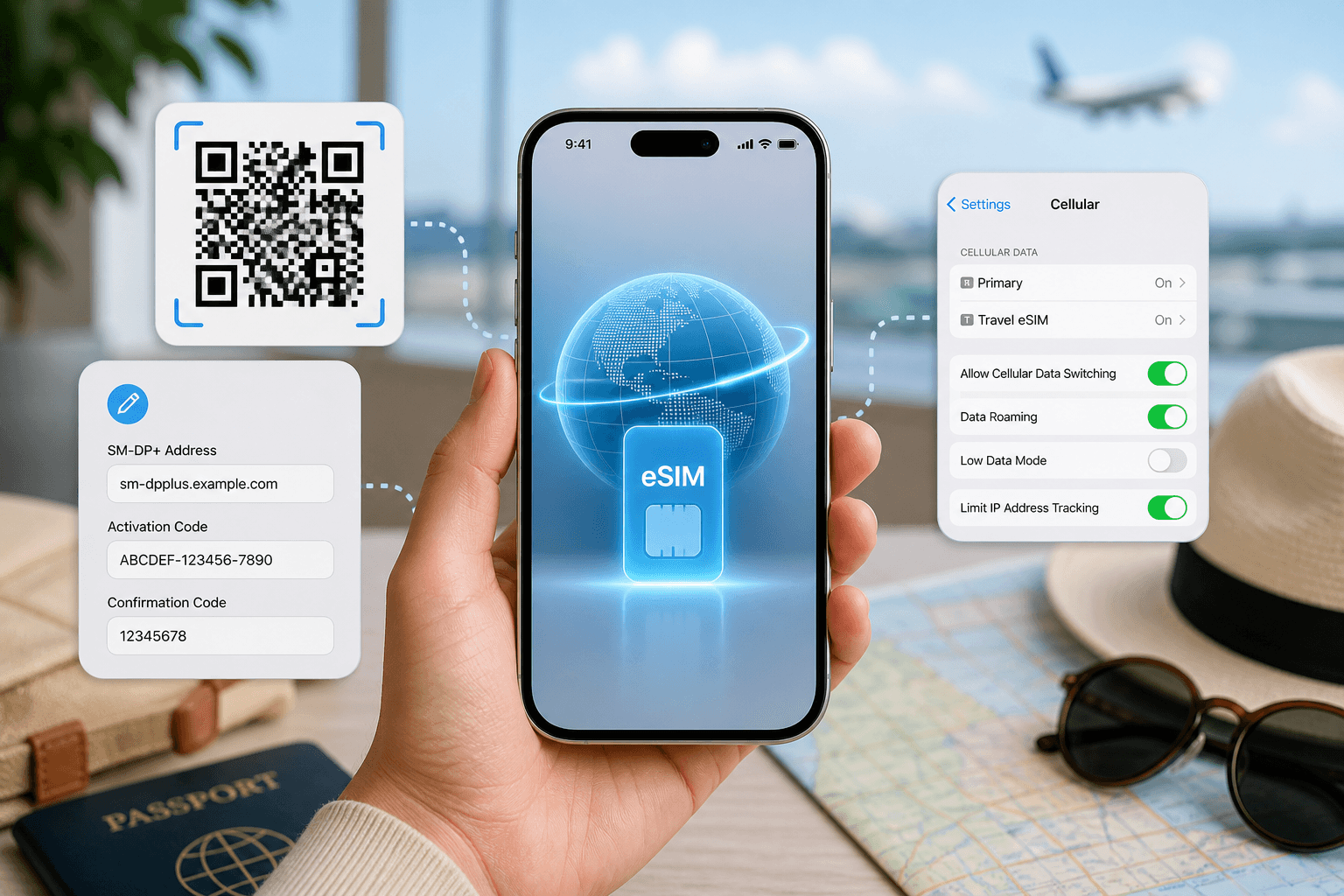
- If you need manual setup: Settings > Cellular > Add eSIM > Use QR Code > Enter Details Manually, then enter the SM-DP+ details supplied with the plan.
Some iPhones show “Mobile Service” instead of “Cellular”, depending on region language. The path is otherwise the same.
Which Samsung, Pixel, Xiaomi and other Android phones support eSIM?
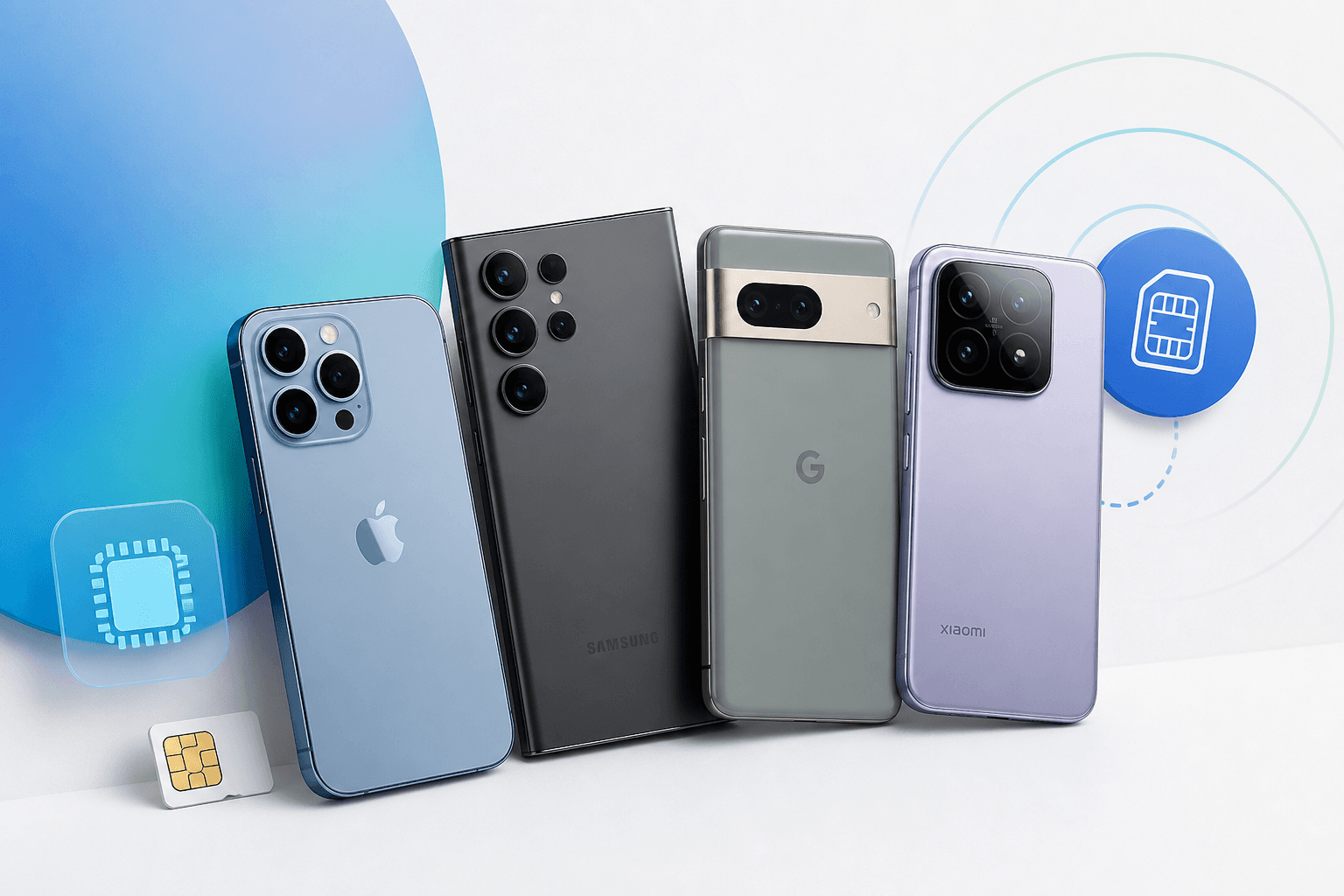
Android support depends more on region and variant than iPhone support does. The same marketing name can behave differently if it was sold in another market, so use the EID and settings-menu checks even if your model appears here.
| Brand or device family | Verified eSIM models and notes |
|---|---|
| Samsung Galaxy | Galaxy S20-S25 including Plus, Ultra and FE; Note 20; Z Fold 2 and later; Z Flip; A54, A55, A56, A35, A36 in most regions |
| Google Pixel | Pixel 3 and later; Pixel Fold; some Japanese-carrier Pixel 3 models are excepted |
| Xiaomi | 12T Pro; 13, 13 Pro, 13T, 13T Pro; 14, 14 Pro, 14T, 14T Pro; 15, 15 Ultra, global versions |
| Motorola | Razr 2019 and later; Edge 40, Edge 50 and Edge 60 families; Moto G53, G54, G84, G85 and later in Europe |
| Huawei and Honor | Huawei P40, P40 Pro, Mate 40 Pro, Pura 70, not Chinese versions; Honor Magic 4-7 Pro; Honor 90 in Europe |
| OPPO, OnePlus, vivo, realme | OPPO Find X3 Pro, Find X5, Find X5 Pro, N2 Flip, Reno 5A and later in Japan or Europe; OnePlus 11, 12, 13; vivo X80, X90, X100 Pro; realme 14 Pro+, region-dependent |
| Sony and others | Sony Xperia 10 III Lite through 10 VI, Xperia 1 IV through 1 VI, Xperia 5 IV through 5 V; Nothing Phone (2), (2a), (3); Fairphone 4 and 5; Sharp Aquos Sense/R; Rakuten Mini/Hand; Surface Duo |
| iPad Wi-Fi + Cellular | iPad Pro 11-inch 2018 and later; iPad Pro 12.9-inch 3rd generation and later; iPad Air 3 and later; iPad mini 5 and later; iPad 7 and later |
For Samsung on Android 14 or Android 15:
- Dial *#06# and check for EID.
- Go to Settings > Connections > SIM manager.
- Tap Add eSIM.
- To install from a QR code, choose the QR-code option shown in SIM manager.
- To install manually, use the manual entry option if shown and enter the SM-DP+ details from the eSIM provider.
For Google Pixel on Android 14 or Android 15:
- Dial *#06# and check for EID.
- Go to Settings > Network & internet > SIMs.
- Tap Add eSIM.
- Follow the scan-QR flow, or use the manual entry option if the phone offers it.
For Xiaomi global models on Android 14 or Android 15:
- Dial *#06# and check for EID.
- Go to Settings > Mobile networks > eSIM.
- Open Add eSIM or the eSIM management screen.
- Scan the QR code, or use manual SM-DP+ entry if that option is available on your software version.
If a provider’s activation flow behaves differently from these menus, check the plan page or support rather than guessing. BeeSim installs by QR code or by manual SM-DP+ entry, and its plan validity starts when the eSIM first connects in the destination, so you can install at home and connect after arrival.
How does the carrier-lock problem block a travel eSIM?
A carrier lock means the phone is restricted to one carrier’s SIM profiles. The phone may still show an EID, and the eSIM menu may still be visible, but the travel eSIM can fail during installation or activation because the phone is not allowed to use that plan.
On iPhone, the check is clear:
- Settings > General > About.
- Carrier Lock.
- Look for No SIM restrictions.
If it says anything else, contact the carrier that locked the phone before buying a travel eSIM. Removing the physical SIM does not remove the lock. Resetting network settings does not unlock the phone either.
On Android, look for clues before travel:
- The phone was bought from a carrier rather than directly from the manufacturer.
- It is still under a carrier contract or finance agreement.
- It was bought second-hand and the seller did not confirm unlocked status.
- The eSIM menu exists, but every non-original plan fails.
If any of those apply, ask the carrier or seller to confirm that the device is unlocked for other SIMs and eSIMs. Do this before departure, because the unlock process may require account access or carrier approval.
What should I check before buying a travel eSIM?
Confirm four things before you pay for a plan.
| Check | Where to look | Why it matters |
|---|---|---|
| eSIM hardware | Dial *#06# and look for EID | No EID usually means no usable eSIM hardware |
| Carrier lock | iPhone: Settings > General > About > Carrier Lock | A locked phone can reject a travel eSIM |
| Add eSIM menu | iPhone, Samsung, Pixel or Xiaomi settings paths above | You need this menu to install the profile |
| Plan conditions | The destination page and plan page | Hotspot availability, country coverage and plan details depend on the exact plan |
BeeSim catalog prices were checked on 2026-10-01; the live country and regional plan list is on each destination page. Plans are charged in USD, with a currency estimate shown on the site. For payment and refund details, use the BeeSim FAQ rather than relying on an old screenshot or cached page.
Also check whether the plan is suitable for how you use your phone. BeeSim plans are data-only, with no local phone number and no SMS. If you need bank texts or calls on your usual number, keep your regular SIM active if your device and home carrier allow it, and watch for any charges from that carrier.
Plans cannot be topped up. If you run out of data or need a longer validity period, you buy another plan. Hotspot and tethering are not guaranteed across all plans; check the plan page for the exact plan you intend to use.
What can go wrong, and how do I fix it before the flight?
If *#06# does not show an EID, do not try to force installation. Check whether you have another compatible phone or tablet, or use a physical SIM option for that trip. If your model is on the list but there is no EID, you may have a regional version without eSIM enabled.
If iPhone Carrier Lock does not say No SIM restrictions, stop there. Contact the locking carrier and ask for the phone to be unlocked for other SIMs and eSIMs. After the carrier confirms, restart the iPhone and check Settings > General > About > Carrier Lock again.
If “Add eSIM” is missing on Samsung, Pixel or Xiaomi, update the phone software first, then check the same path again. Also search Settings for “eSIM”. If the menu still does not appear, verify the exact model name and region; Android eSIM support often depends on that.
If the QR code will not scan, increase screen brightness on the device showing the code, clean the camera lens, and try again without zooming the code. If scanning still fails, use manual SM-DP+ entry where the phone offers it. Do not delete an installed eSIM unless support tells you to; some plans cannot simply be scanned again like a new code.
If the eSIM installs at home but shows no service, check whether you are still outside the destination. For a BeeSim travel plan, validity starts at the first connection in the destination. On arrival, set the eSIM as the mobile data line and turn on data roaming for that eSIM line.
On iPhone: Settings > Cellular > Cellular Data > choose the eSIM line, then Settings > Cellular > tap the eSIM line > Data Roaming on.
On Samsung: Settings > Connections > SIM manager > Mobile data > choose the eSIM, then Settings > Connections > Mobile networks > Data roaming on.
On Pixel: Settings > Network & internet > SIMs > choose the eSIM > Mobile data on, then Roaming on.
On Xiaomi: Settings > Mobile networks > choose the eSIM for mobile data, then open the eSIM or mobile network settings and turn Data roaming on.
If data still does not work after arrival, confirm that the eSIM line is enabled, mobile data is assigned to that line, and roaming is on for that line. If those settings are correct, contact support from the website and include your phone model, destination, and whether the EID appears when you dial *#06#.
More destinations
All destinations →Topics
Frequently asked questions
Can a phone support eSIM but still be unusable for travel eSIMs?
Yes. eSIM hardware and carrier unlock status are separate checks, so a phone can show an EID and still reject another provider’s eSIM if it is locked.
Is an eSIM the same as a second physical SIM slot?
No. An eSIM is a digital SIM profile stored on the device. Your settings app manages it separately from any removable SIM card.
Can I check eSIM support without internet access?
Yes. Dialing *#06# to look for an EID does not require mobile data or Wi-Fi. Checking the settings menus also works offline.
Should I delete my old eSIM before installing a travel eSIM?
Not unless you are sure you no longer need it. Deleting an eSIM can remove that line from the phone, and reinstallation depends on the provider that issued it.
Does factory resetting a phone remove a carrier lock?
No. A carrier lock is not removed by a normal reset. You need the locking carrier or seller to confirm and complete the unlock.
Editorial Team
Guides and articles from our editorial team.
Related articles
- BeeSim vs Nomad
BeeSim vs Nomad: which travel eSIM to pick for 7 destinations
BeeSim vs Nomad across 7 destinations: plan sizes, unlimited rules, hotspot, top-ups, refunds and what to check before buying.
Oct 18, 202611 min read
- eSIM data
Unlimited eSIM vs Data Plan: Cheaper Break-Even
Use this break-even method to compare an unlimited daily eSIM with fixed GB plans for Thailand, Turkey and the UAE before you travel.
Oct 16, 202611 min read
- iPhone eSIM
How to install a travel eSIM on iPhone: QR code, manual SM-DP+ entry, and the settings people miss
Install a travel eSIM on iPhone with QR or manual SM-DP+ entry, then set the travel line for data and turn roaming on when you arrive.
Oct 15, 20269 min read
- eSIM
What an eSIM Is and How to Use It for Travel
A simple guide to travel eSIM basics, phone checks, buying, installation, and what to switch on after landing.
Oct 14, 20263 min read3 views
- eSIM comparison
BeeSim vs Saily: 7 destinations, hotspot and refunds
Compare BeeSim and Saily across 7 destinations, with plan sizes, unlimited limits, hotspot rules, top-ups and refund checkpoints before you buy.
Oct 14, 20269 min read
- cruise eSIM
eSIM on Cruise Ship: What Works at Sea and in Port
Cruise data guide for sea days, port calls and tender boats: when a travel eSIM works, which plans fit, and what to check before sailing.
Oct 11, 202610 min read