How to install a travel eSIM on iPhone: QR code, manual SM-DP+ entry, and the settings people miss
Install a travel eSIM on iPhone with QR or manual SM-DP+ entry, then set the travel line for data and turn roaming on when you arrive.
Published Oct 15, 20269 min read
In this guide
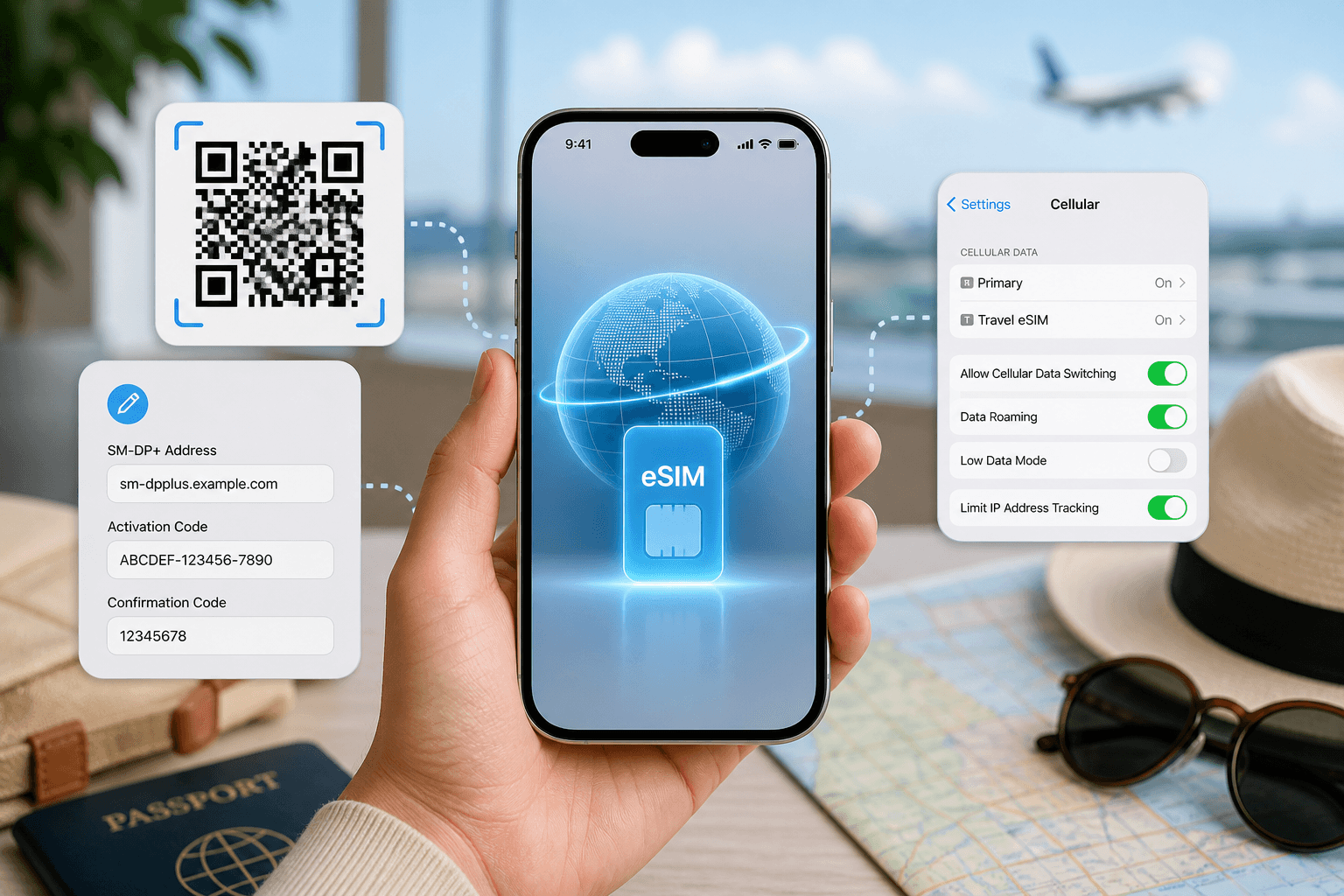
To install eSIM iPhone for travel, go to Settings > Cellular or Mobile Data > Add eSIM, then scan the QR code or enter the SM-DP+ details manually. Install it before you fly if you want, but keep the travel line off until arrival because a travel eSIM should connect only in the destination.
Most installation failures are not the QR code. They happen after installation, when the traveller forgets to set the travel line for Mobile Data or leaves Data Roaming off on that line.
How do I install a travel eSIM on iPhone with a QR code?
Use the QR method when you have the code open on another screen or printed. If you bought a BeeSim plan, the QR code appears after purchase in your account, in the BeeSim app, and by email.
On iOS 17/18:
- Connect the iPhone to Wi-Fi.
- Open Settings.
- Tap Cellular or Mobile Data. The name depends on your region.
- Tap Add eSIM.
- Tap Use QR Code.
- Scan the QR code.
- Follow the prompts until the eSIM is added.
- When iPhone asks for a label, name the line Travel.
- Before departure, keep the Travel line turned off.
Do not delete the eSIM just because you are not using it yet. With travel eSIMs, a deleted profile usually cannot be installed again from the same QR code. If you think you installed the wrong plan, or the eSIM appears but will not activate, contact support before deleting the profile.
The label matters. A clear label such as Travel makes it much easier to choose the right line later, especially when you are tired after landing and the phone is asking which SIM should handle data.
How do I install an iPhone eSIM manually with SM-DP+ details?
Manual installation uses the same iPhone menu, but instead of scanning a QR code you type the activation details. Use this if the camera cannot scan the code, you have the QR on the same iPhone screen, or support has given you the SM-DP+ address and activation code.
On iOS 17/18:
- Open Settings.
- Tap Cellular or Mobile Data.
- Tap Add eSIM.
- Tap Use QR Code.
- Tap Enter Details Manually.
- Enter the SM-DP+ address exactly as shown.
- Enter the activation code exactly as shown.
- Continue through the prompts.
- Label the new line Travel.
- Keep the Travel line off until you reach the destination.
Copy and paste if possible. If you type the details, watch for extra spaces at the start or end of the SM-DP+ address and activation code. Those spaces can stop the profile from being accepted.
BeeSim travel eSIMs are data-only. They do not include a local phone number, voice calls, or SMS, so do not set the travel line as your default voice line. Keep your home SIM available for calls and SMS if you still need them, but switch mobile data away from the home line before using data abroad.
Which iPhone settings should I change after landing?
After you land, turn on the Travel line, choose it for Mobile Data, and enable Data Roaming on that same line. This is the setting many people miss: travel eSIMs are roaming profiles, so roaming must be on for the travel eSIM line.
On iOS 17/18:
- Open Settings.
- Tap Cellular or Mobile Data.
- Tap the Travel line.
- Turn On This Line on.
- Tap back to Cellular or Mobile Data.
- Tap Cellular Data or Mobile Data.
- Select Travel.
- Go back to the Travel line settings.
- Turn Data Roaming on.
- Keep your home line on for calls and SMS if needed, but keep its mobile data switched off.
Do not turn roaming on for your home line unless you have decided to use your home operator abroad. The travel eSIM needs roaming. Your home SIM does not need to carry mobile data while the travel eSIM is doing that job.
| Phone system | Install path | After arrival | Setting people miss |
|---|---|---|---|
| iOS 17/18 | Settings > Cellular or Mobile Data > Add eSIM > Use QR Code | Set Travel as Mobile Data | Data Roaming on the Travel line |
| iOS 17/18 manual | Settings > Cellular or Mobile Data > Add eSIM > Use QR Code > Enter Details Manually | Enter SM-DP+ address and activation code | Keeping the line off before departure, then on after arrival |
| Android 14/15 Pixel | Settings > Network & internet > SIMs > Add eSIM | Choose the eSIM for Mobile data | Data roaming on the eSIM |
| Android 14/15 Samsung One UI | Settings > Connections > SIM manager > Add eSIM | Choose the eSIM for Mobile data | Data roaming on the eSIM |
| Android 14/15 Xiaomi HyperOS | Settings > Mobile networks > Add eSIM | Choose the eSIM for Mobile data | Data roaming on the eSIM |
Should I install the travel eSIM before departure or after arrival?
Install it before departure if you have Wi-Fi and time to check the menu calmly. For BeeSim plans, validity starts at the first connection in the destination, so installing at home does not start the plan by itself.
The safe setup is simple: install at home, label it Travel, and leave the line off. When the aircraft lands and you are allowed to use mobile service, turn the Travel line on, select it for Mobile Data, and enable Data Roaming on that line.
If you wait until arrival to install, you may need airport Wi-Fi to download the eSIM profile. That can work, but it adds one more dependency at the moment you want the phone to be ready.
How do I keep my home number working without using home data?
Keep the home line active for calls and SMS, but do not use it for mobile data. On iPhone, the practical setup is:
- Settings > Cellular or Mobile Data.
- Keep your home line turned on if you need calls or SMS.
- Set Cellular Data or Mobile Data to Travel.
- Open the home line settings and make sure its data is not the selected data line.
- Open the Travel line settings and make sure Data Roaming is on.
This setup is especially useful when a bank, airline, or taxi app sends an SMS to your home number. The travel eSIM supplies data; the home SIM remains present for messages and calls. BeeSim plans do not provide SMS or a local voice number, so the home line is still the line to use for those services.
If your iPhone asks which line to use for contacts or messages, choose the home line for calls and SMS. Choose Travel only for mobile data.
What should I check before the flight?
Before you leave, check the parts that are easier to fix while you still have stable Wi-Fi.
| Check | Where on iPhone | What you want to see |
|---|---|---|
| eSIM installed | Settings > Cellular or Mobile Data | A line labelled Travel |
| Travel line before departure | Settings > Cellular or Mobile Data > Travel | Line kept off |
| Data line after arrival | Settings > Cellular or Mobile Data > Cellular Data or Mobile Data | Travel selected |
| Roaming after arrival | Settings > Cellular or Mobile Data > Travel | Data Roaming on |
| Home line | Settings > Cellular or Mobile Data | On only if you need calls or SMS |
If the plan page says hotspot or tethering is available, you can use the iPhone Personal Hotspot menu after the Travel line is carrying data. If the plan page does not say it, do not assume it is included. Check the plan page or contact support before relying on tethering for a laptop or another phone.
For payment or refund details, use the BeeSim FAQ rather than old screenshots or saved notes. Those policies are kept there instead of in setup articles.
What can go wrong, and how do I fix it?
Start with the settings that affect almost every travel eSIM problem: line on, selected for data, roaming on.
If the iPhone shows no data after landing:
- Go to Settings > Cellular or Mobile Data.
- Tap Travel.
- Make sure Turn On This Line is on.
- Make sure Data Roaming is on.
- Go back to Cellular Data or Mobile Data.
- Select Travel.
- Wait for the phone to register on the destination network.
If the QR code will not scan:
- Increase the brightness on the screen showing the QR code.
- Make sure the whole code is visible.
- Use Settings > Cellular or Mobile Data > Add eSIM > Use QR Code again.
- If scanning still fails, tap Enter Details Manually and enter the SM-DP+ address and activation code.
If the eSIM installed but you are tempted to delete it:
- Do not delete it as a first fix.
- Check that the Travel line is on.
- Check that Travel is selected for Mobile Data.
- Check that Data Roaming is on for Travel.
- Contact support before deleting the eSIM profile.
A deleted travel eSIM profile usually cannot be reinstalled from the same QR. That is the one mistake that can turn a settings problem into a support problem.
If the APN menu looks empty or confusing, leave it alone unless support tells you otherwise. With BeeSim, the APN is set automatically in normal setup. Manual APN changes should be used only when support gives you the exact value.
If mobile data works but calls or SMS do not work on the travel line, that is expected for a data-only travel eSIM. Use your home line for calls and SMS, or use apps that work over mobile data.
How is the setup different on Android if a travel companion asks?
The iPhone steps above do not match Android menus. If someone in your group has Android 14/15, the install path depends on the phone brand.
For Pixel:
- Settings > Network & internet.
- Tap SIMs.
- Tap Add eSIM.
- Scan the QR code.
- Choose the eSIM for Mobile data.
- Enable Data roaming on the eSIM.
For Samsung One UI:
- Settings > Connections.
- Tap SIM manager.
- Tap Add eSIM.
- Scan the QR code.
- Choose the eSIM for Mobile data.
- Enable Data roaming on the eSIM.
For Xiaomi HyperOS:
- Settings > Mobile networks.
- Tap Add eSIM.
- Scan the QR code.
- Choose the eSIM for Mobile data.
- Enable Data roaming on the eSIM.
The same rule applies across iPhone and Android: install the profile, select it for mobile data in the destination, and turn roaming on for the travel eSIM line. If the behaviour depends on the plan, check the plan page or support before changing settings that are not listed there.
More destinations
All destinations →Topics
Frequently asked questions
Can I scan an eSIM QR code from the same iPhone?
If the QR code is only on the same iPhone, manual entry is usually easier. Use Settings > Cellular or Mobile Data > Add eSIM > Use QR Code > Enter Details Manually, then type the SM-DP+ address and activation code.
Does installing a travel eSIM switch off my normal SIM?
No. Installing an eSIM adds another line; you still choose which line handles mobile data, calls, and SMS. For a data-only travel eSIM, keep your normal SIM for calls and SMS if you need them.
Why does my travel eSIM need Data Roaming on?
Travel eSIMs use roaming profiles to connect in the destination. Turn Data Roaming on for the travel eSIM line, not for your home line unless you intend to use home data abroad.
What should I do if I installed the eSIM too early?
Leave the travel line off until you arrive. For BeeSim plans, validity starts at the first connection in the destination, so the key is not to connect the travel line before you need it.
Can I reinstall the same travel eSIM after deleting it?
Usually, no. A deleted profile often cannot be installed again from the same QR code, so contact support before deleting an eSIM that is already on the phone.
Editorial Team
Guides and articles from our editorial team.
Related articles
- BeeSim vs Nomad
BeeSim vs Nomad: which travel eSIM to pick for 7 destinations
BeeSim vs Nomad across 7 destinations: plan sizes, unlimited rules, hotspot, top-ups, refunds and what to check before buying.
Oct 18, 202611 min read
- eSIM data
Unlimited eSIM vs Data Plan: Cheaper Break-Even
Use this break-even method to compare an unlimited daily eSIM with fixed GB plans for Thailand, Turkey and the UAE before you travel.
Oct 16, 202611 min read
- eSIM
What an eSIM Is and How to Use It for Travel
A simple guide to travel eSIM basics, phone checks, buying, installation, and what to switch on after landing.
Oct 14, 20263 min read3 views
- eSIM comparison
BeeSim vs Saily: 7 destinations, hotspot and refunds
Compare BeeSim and Saily across 7 destinations, with plan sizes, unlimited limits, hotspot rules, top-ups and refund checkpoints before you buy.
Oct 14, 20269 min read
- Portugal
eSIM for Portugal: which plan to buy before you land
Choose a Portugal eSIM by trip length and daily data use, from 3 GB / 30 days to 100 GB / 60 days. Install before flying.
Oct 13, 202610 min read
- cruise eSIM
eSIM on Cruise Ship: What Works at Sea and in Port
Cruise data guide for sea days, port calls and tender boats: when a travel eSIM works, which plans fit, and what to check before sailing.
Oct 11, 202610 min read