How to install a travel eSIM on an iPhone and set it up after landing
Install a travel eSIM on iPhone using a QR code or manual details, then switch the right settings after landing so data uses the eSIM, not your home SIM.
Updated Oct 9, 20269 min read2 views
In this guide
If you want your iPhone to use a travel eSIM for data abroad, install the eSIM on Wi‑Fi, label it clearly, set it as the Cellular Data line, and only enable Data Roaming for the eSIM after you land. The most common problems come from installing without Wi‑Fi, leaving data roaming on for the home SIM, or deleting the eSIM instead of simply turning the line off.
What you need before you start (and how to check it on iPhone)
Before you open Settings, confirm three things. It saves time and avoids the “Unable to Activate eSIM” loop.
- Your iPhone supports eSIM and is carrier-unlocked
- eSIM support depends on iPhone model and region. If you already see an option to add an eSIM in Settings, that’s the simplest confirmation.
- The phone must be carrier-unlocked. If it’s locked, the eSIM may install but won’t activate on a foreign network.
How to check for a carrier lock:
- Settings > General > About
- Scroll to Carrier Lock. If it says No SIM restrictions, the iPhone is unlocked. If you see a restriction, contact your carrier before traveling.
- You have iOS with the eSIM setup menus On current iOS versions, the path is typically:
- Settings > Cellular In some regions or older wording, you may see Mobile Data instead of Cellular. The steps are the same.
- You have reliable Wi‑Fi for installation Installing an eSIM downloads a profile to your iPhone. Do it on stable Wi‑Fi. If you try to install on weak Wi‑Fi or on cellular data, the download can fail partway through and you may end up with a half-added line that won’t activate.
Have these details ready from your eSIM provider:
- A QR code, or
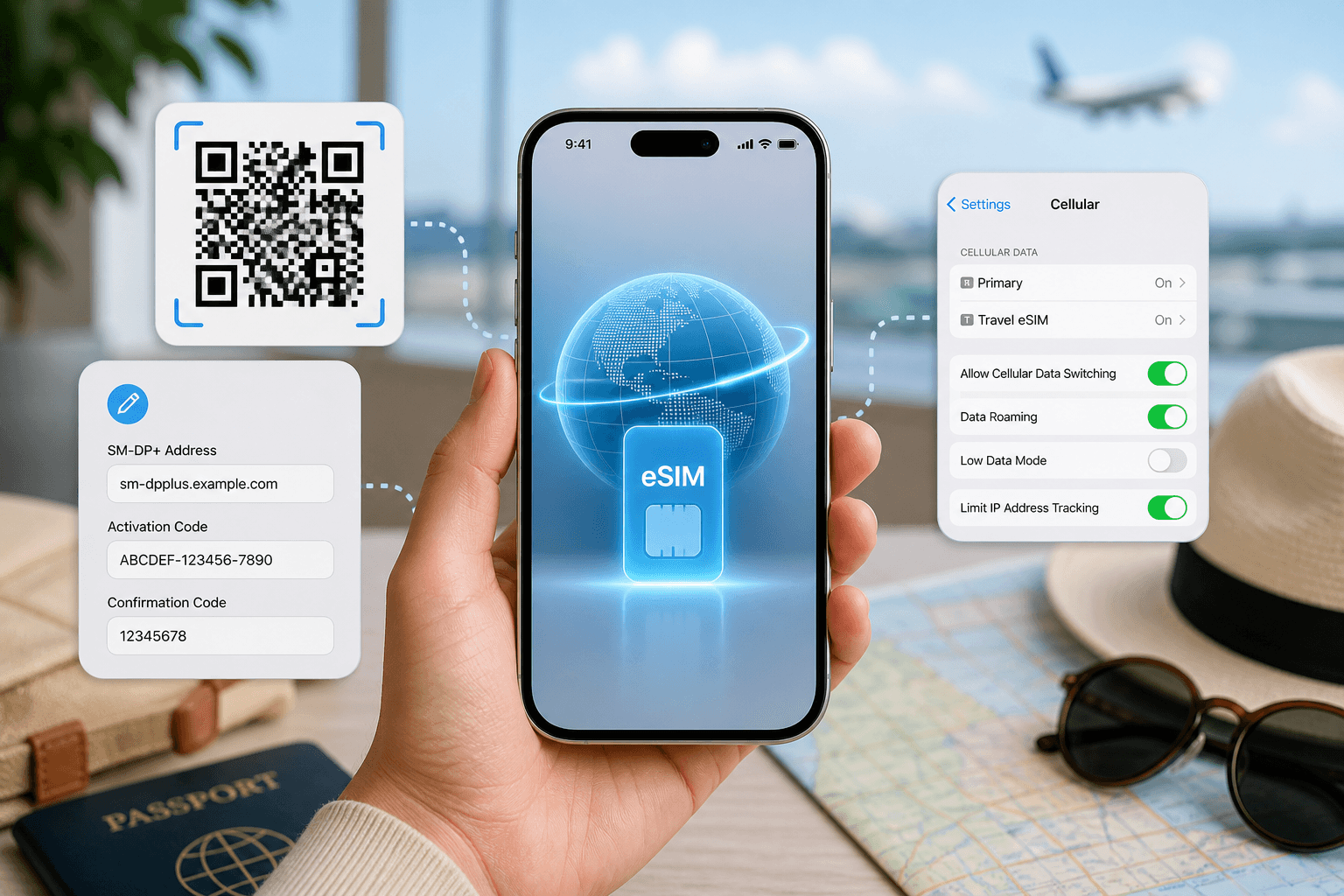
- Manual install details: SM-DP+ address and activation code (sometimes called a confirmation code)
If you’re using BeeSim, the eSIM is issued right after payment and you can install via one-tap (where supported), QR code, or manual entry. Install before the trip on Wi‑Fi, then switch the eSIM line on after arrival.
How to install the eSIM on iPhone with a QR code
A QR code install is the fastest method when you can show the QR code on another screen.
- Open the eSIM setup screen
- Settings > Cellular (or Mobile Data) > Add eSIM
- Choose Use QR Code (wording can vary slightly by iOS version)
- Scan the QR code
- Hold your iPhone over the QR code displayed on a laptop, tablet, or another phone.
- Keep the QR code fully in frame until your iPhone recognizes it.
- Follow the prompts to add the cellular plan
- Your iPhone will download the eSIM and add it as a new line.
- If asked to confirm adding a plan, proceed.
If the scan fails:
- Increase screen brightness on the device showing the QR code.
- Avoid reflections and zoom the QR code so it’s large but not blurry.
- Make sure you’re on Wi‑Fi during the download part.
If you only have one device and the QR code is on your iPhone
This is a common snag: you can’t scan a QR code that’s on the same phone’s screen.
Use one of these options:
Option A: Use one-tap install if your provider offers it Some providers offer a direct install link that opens the iOS eSIM installer. If you see an “Install” button in the provider’s app or webpage, use it while connected to Wi‑Fi.
Option B: Use manual entry (recommended when you can’t scan) If your provider shows manual details, you can install without scanning. Use the steps in the next section.
Option C: Long-press the QR image only if iOS offers an install action In some cases, if the QR code is in an email or webpage, a long-press may reveal an action related to adding a cellular plan. This behavior varies and is not consistent across apps, so manual entry is the dependable route.
How to install the eSIM on iPhone with manual entry (SM-DP+ and activation code)
Manual entry is the fallback when QR scanning is not possible or not working.
- Go to the add eSIM screen
- Settings > Cellular (or Mobile Data) > Add eSIM
- Choose the manual option
- Look for Enter Details Manually (sometimes shown as “Enter Code Manually” or similar)
- Enter the SM-DP+ address and activation code
- Copy and paste when possible to avoid typos.
- Watch for lookalike characters (for example, O vs 0).
- Confirm and wait for the plan to download Stay on Wi‑Fi and keep the screen awake until it finishes.
What to do if manual entry fails:
- Re-check spacing and punctuation. These fields are strict.
- Try switching to a different Wi‑Fi network.
- If you’re behind a restrictive network (some hotel Wi‑Fi), try another Wi‑Fi source.
How to label the new eSIM line and choose the right line for data vs calls
Once the eSIM is added, iPhone will ask you to label the lines and choose defaults. This is where you prevent most roaming bill surprises.
Label your lines so you don’t toggle the wrong one
When prompted to label, choose names that are unambiguous, such as:
- Primary (Home)
- Travel eSIM (Country/Region)
You can change labels later:
- Settings > Cellular
- Tap the line name (under Cellular Plans)
- Tap Cellular Plan Label
Clear labels matter because you will be turning Data Roaming on for one line and off for the other.
Set the travel eSIM for Cellular Data, keep your main line for calls and texts
On iPhone, you can use one line for data and another for voice.
Set data line:
- Settings > Cellular
- Tap Cellular Data
- Select your travel eSIM label
Set default voice line (optional, if prompted):
- Keep your Primary line as the default for voice calls and SMS if you want to continue using your usual number.
Important limitation to remember: many travel eSIMs are data-only. That means no phone number and no carrier voice/SMS on the eSIM line. Messaging apps and internet calls still work over data.
Turn off Allow Cellular Data Switching so data doesn’t fall back to your home SIM
This setting is the reason some people unknowingly use their home SIM for data abroad.
- Settings > Cellular
- Tap Cellular Data
- Turn off Allow Cellular Data Switching
With switching off, your iPhone will not automatically move data back to the Primary line if the travel eSIM signal is weak. If the eSIM has no service, data will stop instead of quietly using the home SIM.
What to switch on after landing (and what to keep off)
The safest workflow is: install at home on Wi‑Fi, keep the travel eSIM line off during transit, then enable the right settings after you arrive.
After arrival: turn on the eSIM line and enable Data Roaming for that line
Most travel eSIMs require Data Roaming enabled on the eSIM line to connect to partner networks.
- Turn on the eSIM line
- Settings > Cellular
- Under Cellular Plans, tap your travel eSIM
- Turn on Turn On This Line
- Enable Data Roaming for the eSIM line
- Settings > Cellular
- Tap your travel eSIM line
- Tap Data Roaming
- Turn on Data Roaming
Only enable it after you land and are ready to use data. Some plans start validity when the eSIM first connects at the destination (the exact rule depends on the plan and should be shown by the provider).
Keep Data Roaming off for your home SIM
This is the other big source of surprise charges.
- Settings > Cellular
- Tap your Primary (home) line
- Tap Data Roaming
- Make sure Data Roaming is off
If you want to be extra strict, you can also turn off the home line entirely while abroad:
- Settings > Cellular > Primary line > Turn On This Line (off)
That stops calls and SMS to your usual number, so only do it if you’re sure you won’t need them.
Check that iPhone is actually using the eSIM for data
Do a quick verification while still on the ground:
- Settings > Cellular
- Cellular Data should show your travel eSIM label
- Your travel eSIM line should show signal bars (once connected)
Then open Safari and load a webpage. If it works, you’re online through the selected data line.
Common mistakes that break travel eSIM setup on iPhone (and how to fix them)
These are the issues that come up most often with travel eSIM installs.
Mistake: deleting the eSIM instead of switching the line off
If you delete an eSIM, you remove the profile from the phone. Many QR codes are single-use, so you often cannot reinstall the same eSIM by scanning again.
What to do instead:
- To stop using it temporarily: Settings > Cellular > tap the eSIM line > Turn On This Line (off)
If you already deleted it:
- Check your provider’s installation page for a re-download option.
- If you used BeeSim, check the app for your eSIM details and support options. Refund rules can depend on whether the eSIM was installed; for more, see beesim.space/faq.
Mistake: trying to install without Wi‑Fi
Symptoms include activation errors, endless “Activating…”, or the plan appearing but never connecting.
Fix:
- Connect to strong Wi‑Fi.
- Go back to Settings > Cellular and see if the eSIM line exists.
- If it exists but is stuck, toggle the line off and on.
- If it does not exist, repeat Add eSIM on Wi‑Fi.
Mistake: leaving Allow Cellular Data Switching on
Symptoms: data works, but you later discover it used the home SIM part of the time.
Fix:
- Settings > Cellular > Cellular Data > turn off Allow Cellular Data Switching
- Reconfirm Cellular Data is set to the travel eSIM
Mistake: leaving Data Roaming on for the home SIM
Symptoms: unexpected roaming use on your main carrier.
Fix:
- Settings > Cellular > Primary line > Data Roaming off
- Consider turning the Primary line off entirely if you do not need calls/SMS
Mistake: selecting the wrong default line for iMessage and FaceTime
If you use iMessage/FaceTime, iPhone may ask which line to use. This does not affect data routing directly, but it can affect which number or address people see.
Where to check:
- Settings > Messages > Send & Receive
- Settings > FaceTime
If you want your usual number to remain the default, keep it selected there, and use the travel eSIM only for Cellular Data.
Using a travel eSIM with BeeSim: what to do before you fly
If you’re still choosing a plan, BeeSim’s catalog at beesim.space/esim shows each plan’s data amount, validity, network speed, and local operators before you buy. After payment the eSIM is issued right away, and installation works via one-tap install (where supported), QR code, or manual entry.
Install on Wi‑Fi before the trip, label the line clearly, and keep it turned off until you land. After arrival, turn the line on and enable Data Roaming for the eSIM line so it can connect.
More destinations
All destinations →Topics
Frequently asked questions
Can I install a travel eSIM before my trip?
Yes. Install it on Wi‑Fi before you leave, then keep the eSIM line turned off until you arrive and are ready to connect.
Will my iPhone keep my normal phone number for calls and texts?
Yes. You can keep your primary line as the default for calls and SMS while using the travel eSIM only for cellular data.
Do I need to turn on Data Roaming for an eSIM?
Usually, yes for travel eSIMs. Turn on Data Roaming for the eSIM line after you land, and keep Data Roaming off for your home SIM to avoid charges.
What if I deleted the eSIM from my iPhone?
If you deleted it, you may not be able to reuse the same QR code. Contact your eSIM provider’s support with your order details to check reissue options.
Why does my iPhone still use my home SIM for data?
Most often it’s because Cellular Data is still set to your primary line or Allow Cellular Data Switching is enabled. Set Cellular Data to the eSIM and turn switching off.
Editorial Team
Guides and articles from our editorial team.
Related articles
- BeeSim vs Nomad
BeeSim vs Nomad: which travel eSIM to pick for 7 destinations
BeeSim vs Nomad across 7 destinations: plan sizes, unlimited rules, hotspot, top-ups, refunds and what to check before buying.
Oct 18, 202611 min read
- eSIM data
Unlimited eSIM vs Data Plan: Cheaper Break-Even
Use this break-even method to compare an unlimited daily eSIM with fixed GB plans for Thailand, Turkey and the UAE before you travel.
Oct 16, 202611 min read
- iPhone eSIM
How to install a travel eSIM on iPhone: QR code, manual SM-DP+ entry, and the settings people miss
Install a travel eSIM on iPhone with QR or manual SM-DP+ entry, then set the travel line for data and turn roaming on when you arrive.
Oct 15, 20269 min read
- eSIM
What an eSIM Is and How to Use It for Travel
A simple guide to travel eSIM basics, phone checks, buying, installation, and what to switch on after landing.
Oct 14, 20263 min read3 views
- eSIM comparison
BeeSim vs Saily: 7 destinations, hotspot and refunds
Compare BeeSim and Saily across 7 destinations, with plan sizes, unlimited limits, hotspot rules, top-ups and refund checkpoints before you buy.
Oct 14, 20269 min read
- cruise eSIM
eSIM on Cruise Ship: What Works at Sea and in Port
Cruise data guide for sea days, port calls and tender boats: when a travel eSIM works, which plans fit, and what to check before sailing.
Oct 11, 202610 min read